
New AI tools in Figma: are designers still 'T-shaped'?.
Figma has recently introduced many AI features, with the message that more will be added in the near future. What do these new tools mean for the workflow and the position of designers? Is the old model of the ‘T-shaped designer’ still relevant, or has it changed because of these new tools?
T-shaped designers: a starting point in the industry
T-shaped designers are designers who can do a little of many different tasks or disciplines, and are specialised in one thing. This is often the case when someone starts their career as a designer. As the designer gains more experience, their skillset will organically expand, depending on their work and the individual's personal commitment.
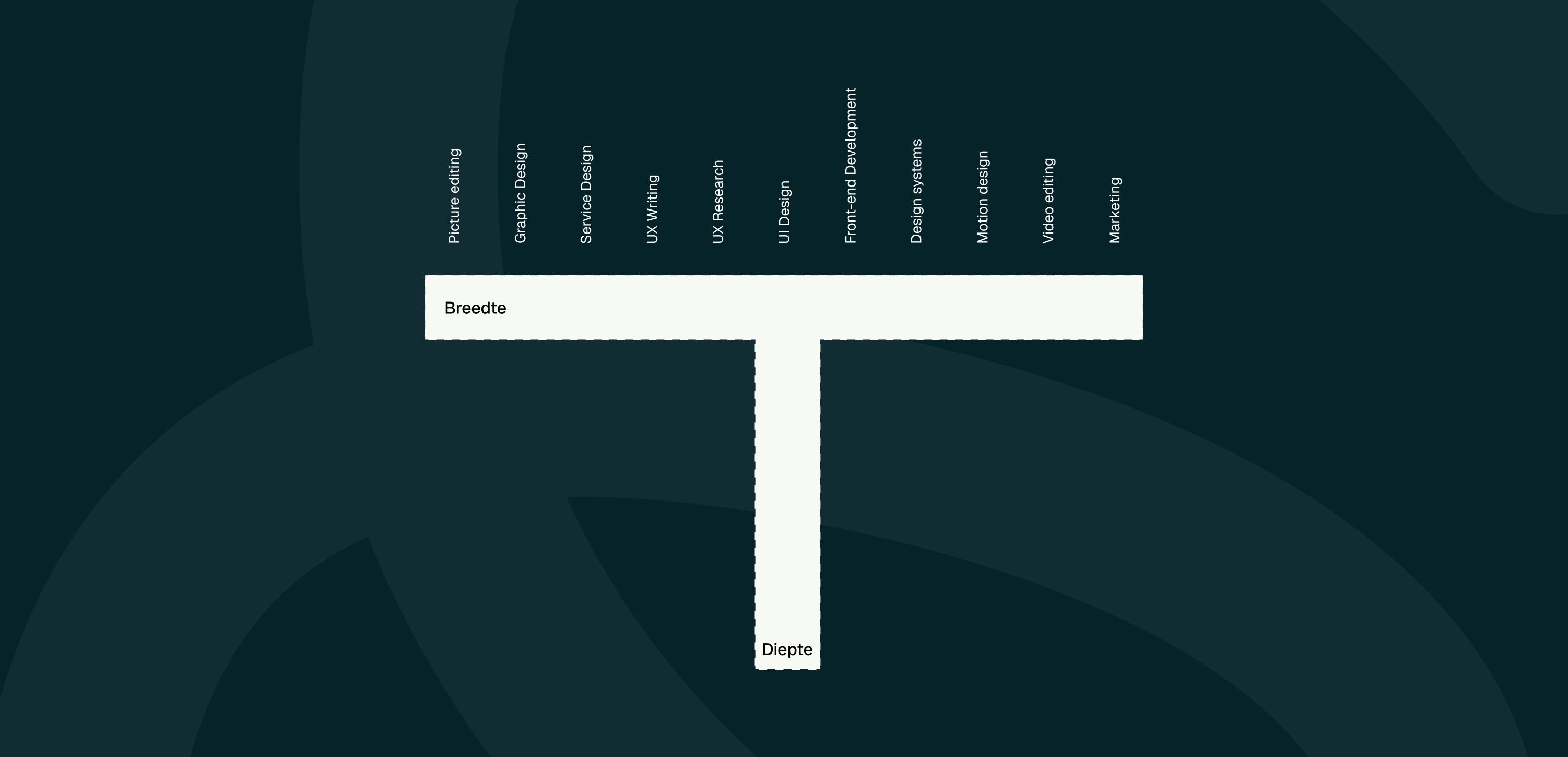
T-shape: “I can do many things well, and one discipline really well.”
There are other known ‘shapes’, such as the I-shape (“I'm good at one thing”), but the T-shape is the best-known example, which we will discuss further in light of the new AI tools. What do these new tools do to the shape of this diagram? First, we'll go through some of the functionalities, and then form a judgement.
New Figma functionalities
Examples of new functionalities include the Figma Design Agent and additions to Figma Make. In addition, a number of impressive Figma Weave tools have been added, which can help with generating mockups and other visual content. Figma's Design Agent can help you with all kinds of tasks on the design canvas, from generating variants of a design to creating animations and giving feedback from a particular role, and during the 'thinking time' you can calmly get on with other tasks. Figma Make, Figma's (visual) vibe-coding environment, has in fact gained 'regular' design editing tools, which can help save AI credits.
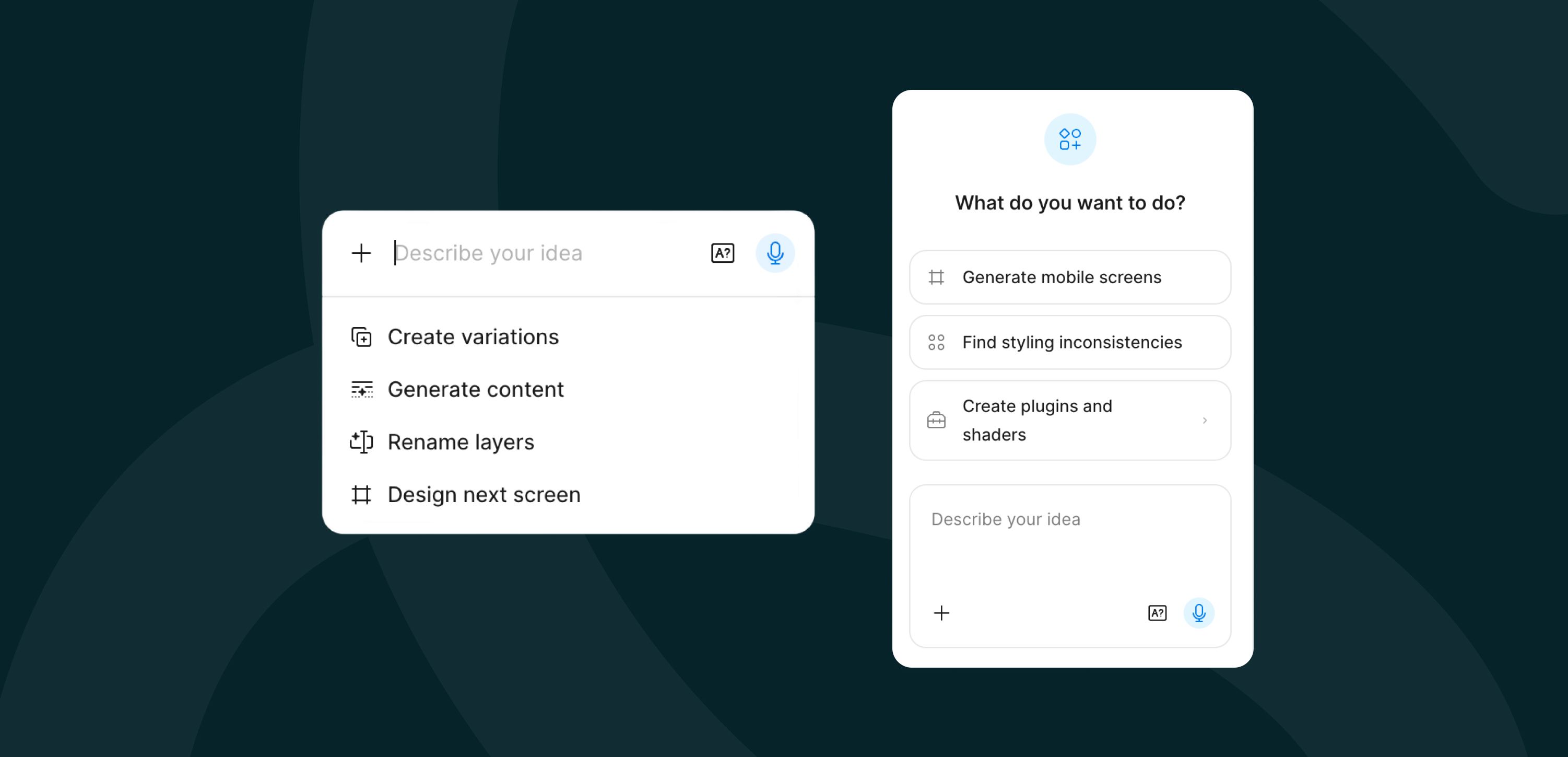
Figma Design Agent
The Design Agent can bring in context from various (external or internal) sources when (for example) generating screens; think of a PRD document with important background information about the project, the target audience and the purpose of the product. You can also have the agent give feedback or make adjustments from a persona, for example from the role of a (fictional) stakeholder. This can help to expose blind spots, but it does not replace thorough user research.
When it comes to UX research, the question is in any case to what extent AI can be a replacement. Online prototyping tools with associated tasks and surveys have existed for some time, and with AI they may become even smarter. But suppose you need to run usability tests on a new app with a target group averaging 80 years of age: would you have them use an online tool to do that? UX research is about human research, and requires specialist knowledge. AI can, however, be supportive with routine tasks (transcribing interviews, summarising insights) or with devising interview questions for a specific target group.
The Design Agent can also help you build custom plugins and shaders for bespoke visuals, and with tasks such as replacing content or renaming layers within a file. These kinds of tasks complement the work of designers well, as they are either routine jobs or matters that are often too technical for many designers.
Ultimately, prompts and the background information behind them work best when the person writing them thinks strategically. To what extent is the target audience genuinely taken into account? Who judges whether a 'vibe design' is well constructed? In that sense, this new way of working also bears some resemblance to art direction and project management.

Figma Weave: generating and editing visuals
Figma Weave (formerly 'Weavy') is a company specialising in visual generative AI and 'artistic intelligence' that was acquired by Figma and, with its latest updates, has been given a place within Figma's design programme. Several Weave tools have been added, allowing you to generate a variety of visual outputs. For instance, you can change the texture of an object and generate mockups and digital photoshoots. You can also adjust the lighting of photographs and replace the backgrounds of images. In addition, using text prompts, you can generate vector illustrations or images in a particular art style (such as Art Nouveau).
Easily change the texture of an image.
The Weave tools are very handy when you want to generate an image quickly, or when you don't want to, or can't, work with Photoshop mockups. You can adjust the style of existing images so they suit a dark mode setting of your design better. If a visual is nearly perfect but not quite there, it is still useful to have some Photoshop skills (or skills in a comparable programme); if you can, alongside prompting, manually edit images until they 'work', you have a small advantage. Ultimately, even with this kind of output, it comes down to a degree of art direction and deliberately making choices about visual output; if you know what you want, you also know when it is finished, and you won't too readily accept a first version that AI has generated for you.

Adjust the lighting of a photo with Figma Weave.
Figma Motion
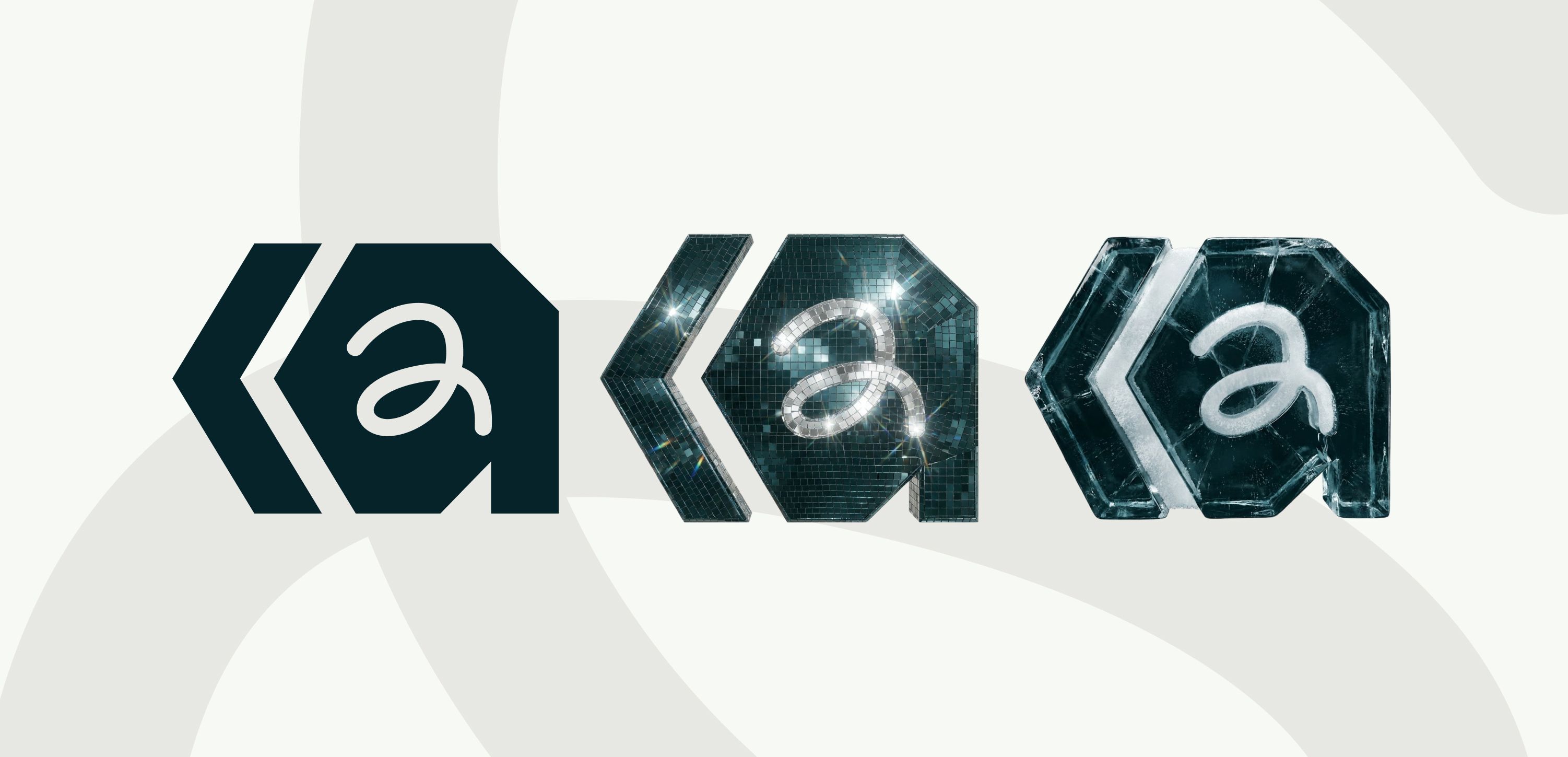
Until recently, Figma offered fairly limited options for setting up animations. You had a few basic options for animation styles, where you could set the duration of the animation and the easing. The introduction of Figma Motion has changed that. You have more control over the animation and can animate the sub-elements of each animated component with greater precision. The Design Agent also works with this; you can simply ask the agent to add an animation, and then adjust it as you wish. This makes setting up an animation much quicker, and adding animations to a design has become more accessible than ever.
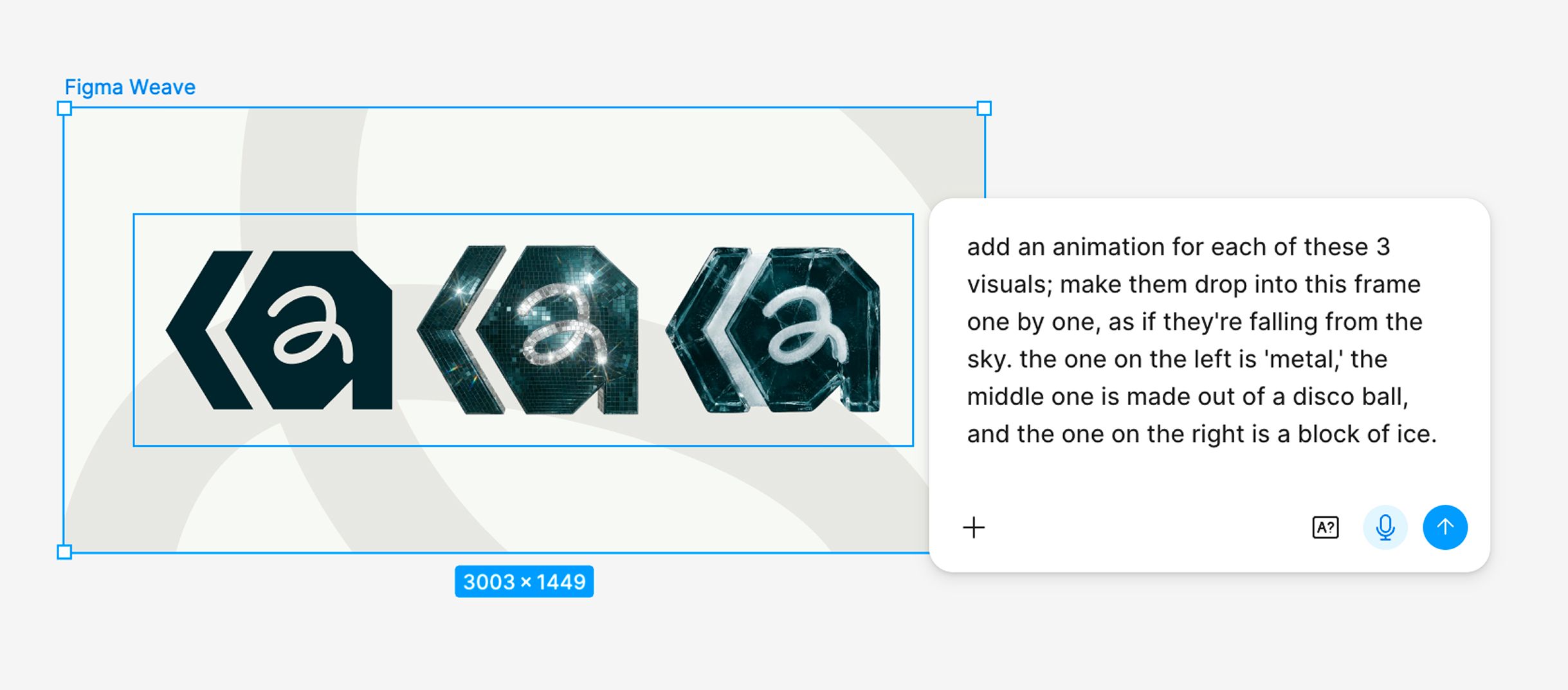
With a simple prompt, you can add an animation. The Figma Agent did not add a different animation for the various 'materials' of the logos – this might have been better stated more clearly in the prompt.

The animation.
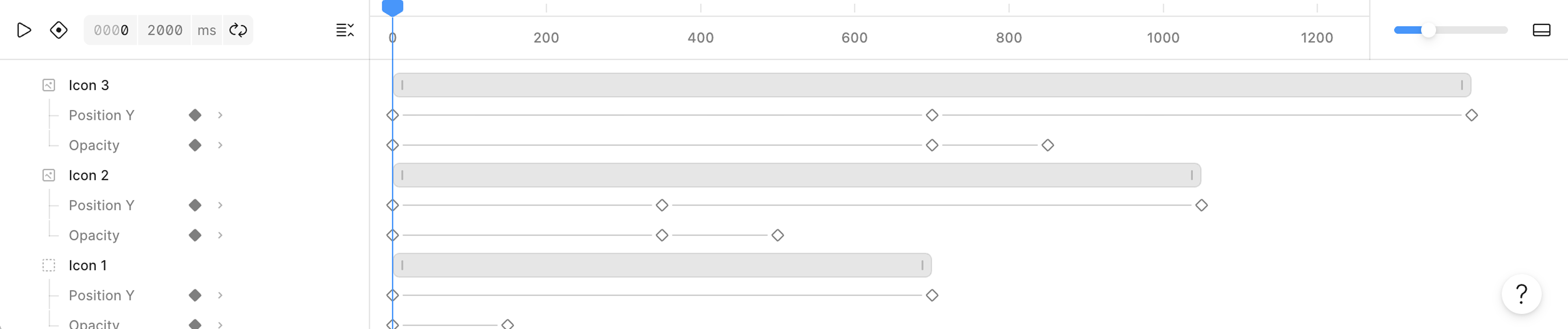
Setting up this animation took just 1 minute and 3 seconds with the Design Agent and Figma Motion.
Figma Make
Figma Make has been around for a while and keeps expanding. With a simple prompt and any attached documents, designs or make kits, the tool can quickly put together a working interface. This is no longer just a simple prototype, but an interface built from real code. As with other AI tools, the output is best when you write a clear prompt and add the right context (for more tips on writing prompts, see this Figma page). Figma Make enables designers to create more realistic prototypes, which can be very valuable during research or testing. Vibe-coding tools such as Figma Make also make programming more accessible to people without a development background, and therefore to designers too. Figma Make now also lets you adjust elements visually. Through choices like these, the boundary between design and code seems to be blurring further.
Figma Make designs look their best when you have built them yourself or when you add sufficient instructions, context or a make kit. A lot of AI-generated design looks neat but monotonous, so with this tool too it is important to have a clear picture of what the design needs to meet. Keep control over the process and make sure the work aligns with the project requirements, whether those are user needs or business goals. Don't settle for the first version of a Figma Make design; the best design emerges iteratively.
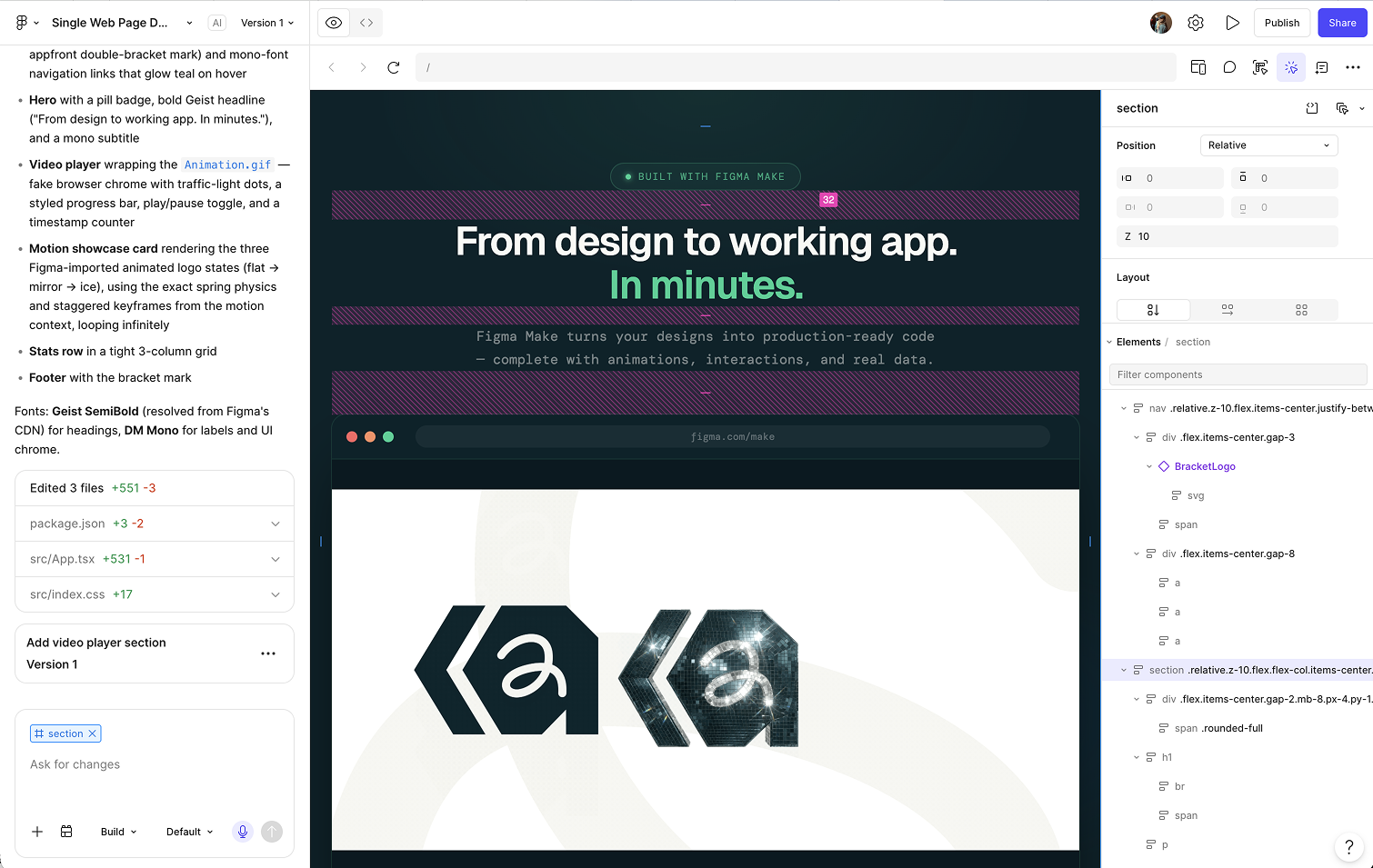
With Figma Make, you create apps and websites using prompts. On the right, you can see the visual editor. It took 2 minutes and 38 seconds to generate this first version of a standalone web page. The design contains various untidy details and elements that were not requested, so this first version is certainly not the best yet, but it forms a good starting point.
Conclusion
For UX designers, the new AI features mainly mean the following:
“I could already do plenty, but now I can also:”
-
Have images generated, from photography to vector illustrations
-
Have documentation written for my design system
-
Custom Figma plugin development
-
Generate code or even push it to GitHub
-
Rapidly building extended prototypes to validate ideas
-
Have animations added, where this was previously too time-consuming or complicated
I deliberately use ‘have’ at every point, and here is why. Ultimately, much of the work lies in formulating the right prompts. AI does not suddenly turn designers into 3D video editors in the traditional sense with just a few words. Adjusting generated content can still be too technical or require many prompts (which also costs money). This creates a dependence on AI and its accompanying business models, but for now it raises the basic productivity for a wider range of skills. AI can help draft a user research plan, but an experienced UX researcher will have more experience and knowledge about whether this plan fits the problem statement and how it can best be carried out. AI is, however, very useful for transcribing interviews and for clustering and summarising research findings. This too can ultimately increase productivity, if it is applied smartly (and ethically). Ultimately, specialists remain valuable, whether in assessing AI output or in doing work that is better done by hand. The often-cited human in the loop principle is therefore not yet a thing of the past.
These AI capabilities mean designers can deliver more different kinds of output. However, deeper knowledge is often still lacking; prompting an animation is quite different from being able to set it up manually and understanding how all the parts work. This dependence makes these new possibilities relatively fragile: what happens if AI becomes too expensive or disappears?
For now, the range of work that can be done is widening, and the output from many types of work is becoming broader. As a result, the classic T-shape is starting to look more like a comb: a comb where not all the teeth are the same length, and the 'original' tooth from the T-shape remains the most robust, which is where the real expertise lies. You could even argue it isn't really a comb shape at all, and that only two new skills have essentially been added: writing good prompts for AI tools, and directing work.
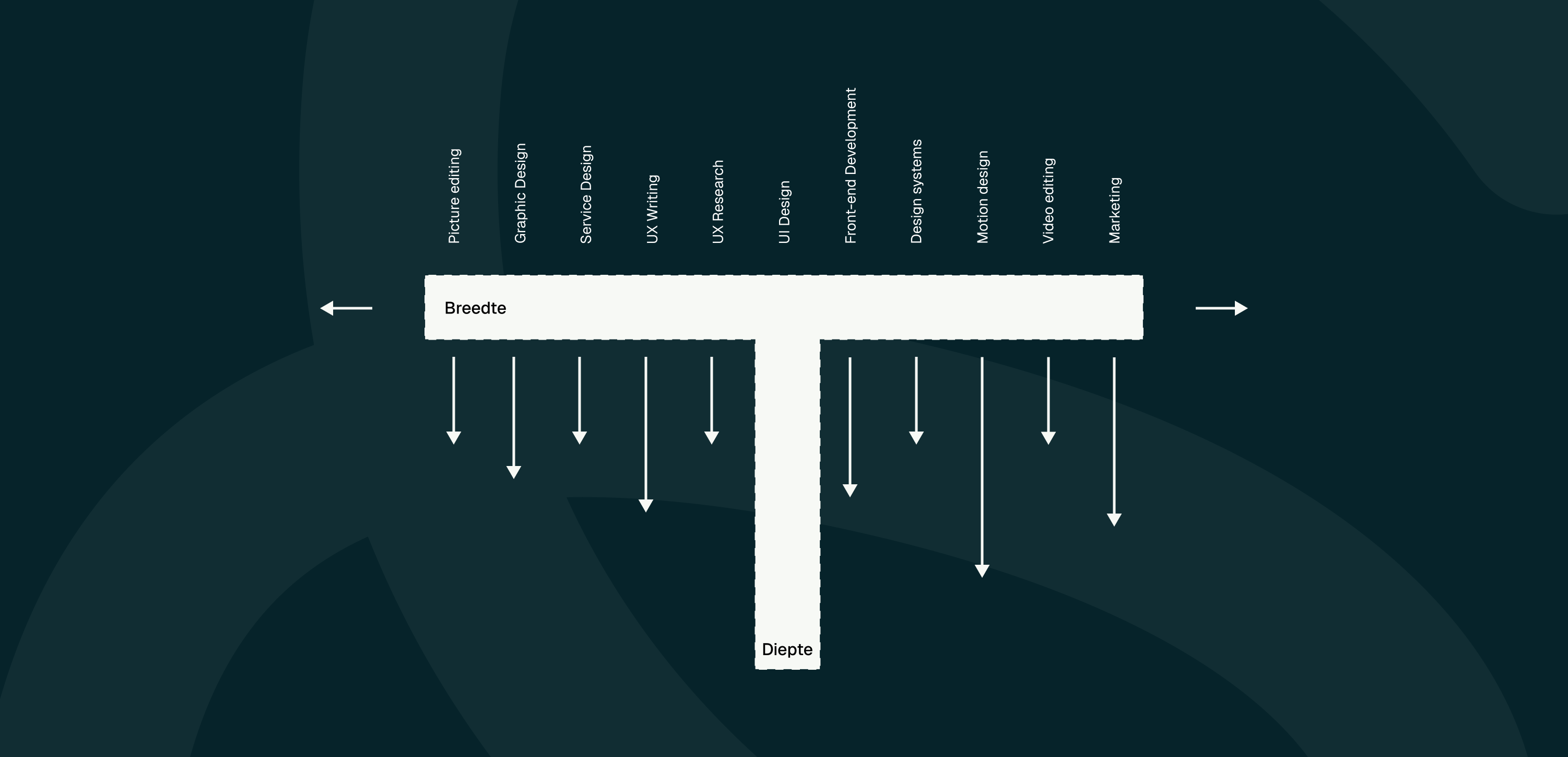
Designers can deliver a wider range of outputs and better, or more, output for each component.

Figma's AI tools feel a bit like a genie in a bottle: you state your wish, and it is granted, even if you don't fully understand what's happening behind the scenes.
Ultimately, the precise shape of the diagram will differ for each individual designer, as everyone has their own unique skillset. If you could already code a little, AI makes that even easier. And if you've never worked with motion design tools, prompting animations may feel more like a genie in a bottle, until you learn more about how it works yourself. For now, more and more is expected of designers, because more and more is possible. But at its core, the reality remains that a designer's background knowledge, design skills, art direction and taste - the human in the loop qualities - are indispensable if you want to develop truly high-quality products.
Tips for using AI in Figma
-
Use AI for repetitive or tedious tasks, such as replacing content, so you have more time to work out designs in detail.
-
You need a 'human in the loop'. AI won't simply run all your user tests for you. Stand up for your specialism and dare to steer the design process, whichever tool you use.
-
Try the Figma Design Agent to ask for feedback too; this can sometimes be useful for gathering extra input (although it doesn't replace feedback from stakeholders).
-
Be aware of your skillset, but also stay curious; other types of work are more accessible than ever, and AI can also help you learn things.
-
Consider how your current workflow could be improved with AI. For example, did you previously struggle to work out animations? That is now much quicker to do.
-
AI can also help with preliminary research and with clustering research findings, which can save time.
The text in this article was written without AI ;).